Managing Full-Text PDFs
Section titled “Managing Full-Text PDFs”You can link full-text PDFs to the studies in SyRF. This allows reviewers to access the full text directly during screening or data extraction. PDFs are linked using the PDFRelativePath field/column in your upload file and then uploaded separately to SyRF storage.
Project administrators can now send the PDF files themselves straight from SyRF, without emailing anyone — see Bulk Upload PDFs. The
PDFRelativePathfield described below is still what SyRF uses to work out which file belongs to which study.
Contents
1. Linking PDFs via the PDFRelativePath Field
Section titled “1. Linking PDFs via the PDFRelativePath Field”- Organize PDFs: Create a main folder on your computer to hold all the PDF files for this Systematic Search. You can organize PDFs into subfolders within this main folder if desired (e.g.,
MyProject_PDFs/Included/Smith_2020.pdf). - Determine Relative Paths: For each reference in your
.xmlor.csvfile that has a corresponding PDF, you need to specify its path relative to the main PDF folder you created.- The
PDFRelativePathfield/column must contain this relative path. - Example: If your main folder is
MyProject_PDFsand a PDF is located directly inside it namedJones_2021.pdf, thePDFRelativePathisJones_2021.pdf. - Example: If the PDF is in a subfolder
SubfolderAwithin the main folder, namedBloggs_2019.pdf, thePDFRelativePathisSubfolderA/Bloggs_2019.pdf. Use forward slashes/as separators. - EndNote Users: EndNote can manage relative paths. Ensure your EndNote settings correctly store relative paths if you intend to use this feature. See EndNote’s guide on file attachments for details on relative vs. absolute paths.
- The
- Ensure Consistency: The folder structure on your computer must exactly match the relative paths specified in your upload file. The filename (including extension
.pdf) must also match precisely.
2. Sending PDFs where Bulk Upload is unavailable
Section titled “2. Sending PDFs where Bulk Upload is unavailable”If your Systematic Search shows Bulk upload PDFs, use that SyRF workflow instead. It builds the upload from the folder you choose, lets you review the matching result, and reports the outcome in SyRF — do not also send the same PDFs to the Helpdesk.
The manual workflow below is only for projects where the Bulk Upload option is not available.
-
After successfully uploading your
.xmlor.csvfile containing thePDFRelativePathinformation: -
Compress: Compress the entire main PDF folder (the one containing all your PDFs and subfolders, matching the structure used for relative paths) into a single compressed file (e.g.,
.zip,.7z). -
Share: Upload this compressed folder to a secure file-sharing service (e.g., Google Drive, Dropbox, OneDrive, institutional file share).
-
Notify SyRF: Email the SyRF Helpdesk (helpdesk@syrf.org.uk) with the following information:
- The email address you used to create your SyRF account.
- Project IDs found on the project overview page.
- Project Name
- Search ID:
How to find it:
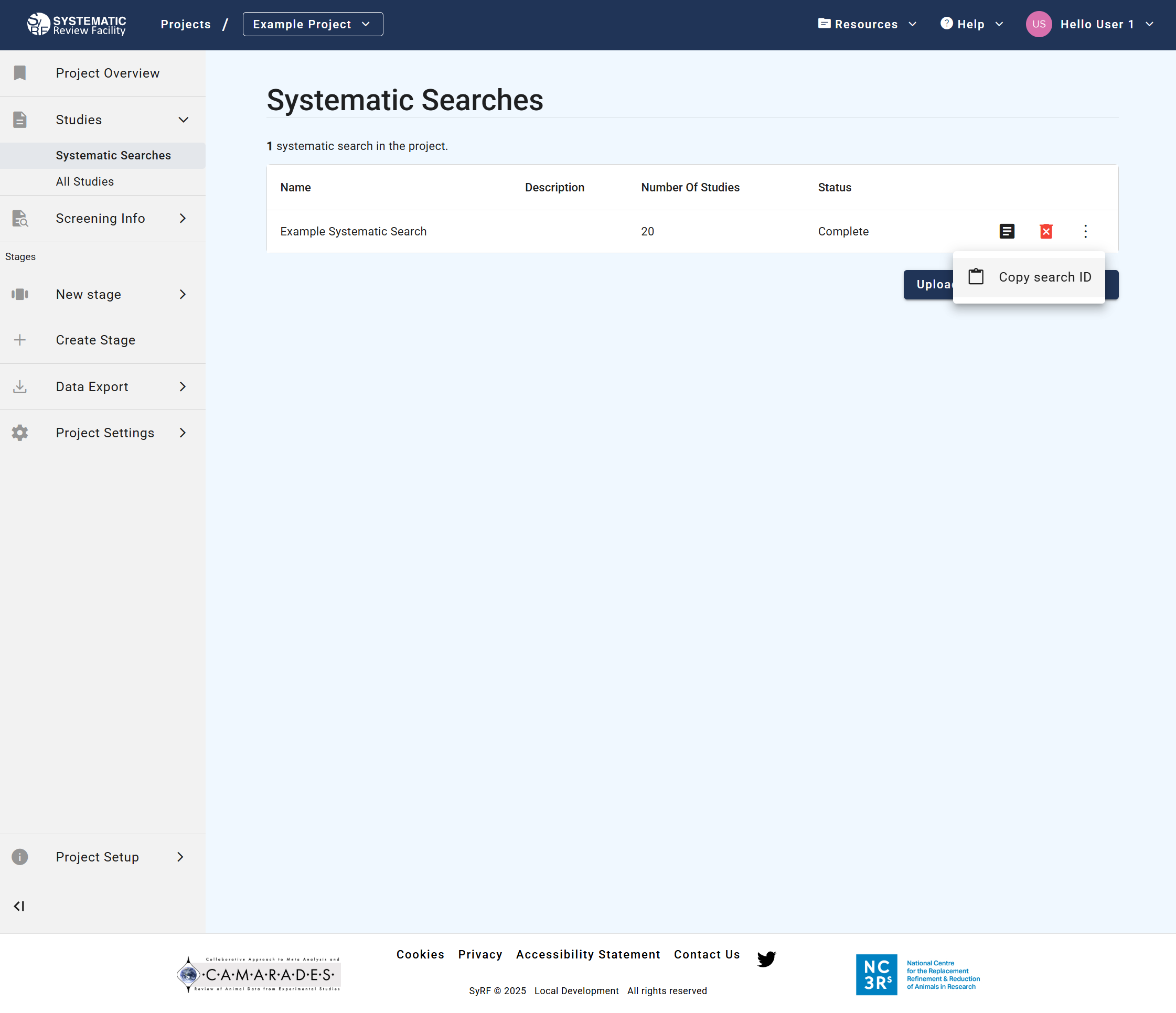
- Go to the Systematic Searches page within your SyRF project. You can find this under the Studies section in the left-hand navigation panel.
- This page lists all your systematic searches. Locate the specific search you need the ID for.
- To the right of that search entry, click the three dots icon.
- An option labelled “Copy search ID” will appear (as shown in the image below). Click it to copy the ID to your clipboard.
- A shareable link to the compressed folder containing your PDFs. Ensure the link provides access permission to the SyRF team.
- Confirmation that your recently uploaded Systematic Search file (
.xmlor.csv) includes the correctPDFRelativePathdata matching the structure in the compressed folder.
The SyRF team will then process your request, upload the PDFs to secure storage, and link them to the corresponding studies in your project using the relative paths provided. Once processed, linked PDFs can be opened directly from the study review page within SyRF.
3. PDF File Naming Conventions and Best Practices
Section titled “3. PDF File Naming Conventions and Best Practices”- Avoid Invalid Characters: Do not use the following characters in your PDF filenames as they can cause issues with storage and linking:
< > : " \ / | ? * - EndNote Default Naming: Be aware that EndNote’s default PDF renaming often uses fields like Author, Year, Title, which might introduce invalid characters (like colons). Consider configuring EndNote to rename PDFs using a unique and clean field, such as
RecordID, to avoid potential problems. See EndNote’s guide on renaming PDFs.
4. Handling PDFs for Multiple-Stage Reviews
Section titled “4. Handling PDFs for Multiple-Stage Reviews”If you only need full-text PDFs for studies that pass an initial title/abstract screen, follow this workflow:
- Initial Upload: Upload your Systematic Search
.xmlor.csvfile without filling in thePDFRelativePathfield (leave it blank or omit PDF information). - First Stage Screening: Perform title and abstract screening within SyRF.
- Identify Relevant Studies: Determine which studies have passed the first stage and require full-text review.
- Gather PDFs: Obtain the full-text PDFs only for these selected studies. Organize them into a folder structure as described above.
- Update Paths via Bulk Update: Use the Bulk Study Update feature to add the correct
PDFRelativePathinformation only for these specific studies. You will need their SyRFstudyIds. - Send PDFs: If Bulk Upload is available, use it for the folder containing only these relevant PDFs. Otherwise compress that folder and follow the manual Helpdesk workflow.
This targeted approach ensures PDFs are available when needed for full-text review, annotation, or data extraction stages.
Changing one study’s PDF in the Studies workspace
Section titled “Changing one study’s PDF in the Studies workspace”Where your SyRF deployment has the Studies workspace switched on, a study’s detail has its own PDF actions. Which ones you see depends on what your project lets you do. Where SyRF checks PDFs, the actions appear once SyRF has checked the study’s PDF, which happens when the study is opened for review or after a PDF is added here. While the PDF reads Checking or Not yet confirmed, there are none.
If you can propose PDFs (every project member, by default):
- Propose a PDF, or Propose a different PDF, asks for the PDF’s web address. An administrator checks it before it becomes the study’s PDF. Until then the study keeps its current PDF status. Afterwards the detail says “You proposed … An administrator will check it.” Other people see only that a PDF is waiting to be checked.
If you can set PDFs (project administrators, by default):
- Add a PDF or Replace takes the PDF’s web address, or its path on SyRF’s PDF server. It becomes the study’s PDF straight away, then SyRF checks the stored file. A link to another website shows as Hosted elsewhere: SyRF doesn’t check other websites.
- Remove link removes the study’s link, so it shows No PDF. The stored file isn’t deleted, and you can add a PDF again later.
- A PDF that came from a bulk PDF upload can be replaced or removed too. The uploaded file stays in storage; only the study’s link changes.
- When someone has proposed a PDF, the detail says what it is and who proposed it, for example “Proposed:
https://journal.example/paper.pdfby Ada Lovelace, 14 May 2026.” Use proposed PDF makes it the study’s PDF, and Reject keeps the current one. A proposed file uploaded from someone’s computer can only be rejected. After you use a proposal, the detail says who proposed it and that you accepted it.
Some changes have to wait:
- While a bulk PDF upload is running for the study’s search, wait until it has finished.
- While a bulk study update is changing the study, try again when it has finished.
Proposing or adding a PDF file from your computer isn’t available yet: use the file’s web address.
Checking proposed PDFs
Section titled “Checking proposed PDFs”If you can set PDFs, you can check every proposed PDF in one list:
- On the project’s Overview, Needs attention shows N proposed PDFs to check. Select Check proposals. (You can also choose Proposed PDF waiting in the PDF filter in Studies.)
- Studies lists the studies that have a proposed PDF waiting. Where SyRF checks PDFs, the PDF column shows, for example, No PDF · 1 proposed.
- Open a study, then select Use proposed PDF or Reject. The study leaves the list once nothing is waiting for it.
Only people who can set PDFs see the count, the filter option and who proposed each PDF. Choosing a search clears the filter. If two people decide the same proposal at once, the first decision stands and the other person is told it has already been used or rejected; the study and its proposal always agree. If there are too many proposed PDFs to list at once (more than 10,000 studies), SyRF says so and shows every study instead.
Related Pages
Section titled “Related Pages”- Bulk Upload PDFs - Send the PDF files themselves straight from SyRF
- Upload Search - How to upload your systematic search file
- Manage Studies - Bulk updates and post-upload management
- View Studies - How to view your uploaded studies