Managing Studies Post-Upload
Section titled “Managing Studies Post-Upload”Contents
- Managing Studies Post-Upload
Using the Bulk Study Update Feature
Section titled “Using the Bulk Study Update Feature”This powerful feature allows Project Administrators to modify data for existing studies in bulk after they have been uploaded. It’s useful for:
- Adding or correcting
PDFRelativePathinformation (e.g., for the two-stage PDF workflow). - Adding or correcting
CustomIDvalues. - Uploading or modifying screening decisions made outside of SyRF (or correcting existing ones).
Projects that use the new Studies workspace run a bulk study update from its header, as described in the next section. In other projects it runs from the All Studies page, as described from How to Access Bulk Update onwards. The file is the same in both.
Bulk study update in the Studies workspace
Section titled “Bulk study update in the Studies workspace”Bulk study update sits in the Studies page header (under More actions on a phone). It appears only if you may bulk update studies in this project. It opens a dialog with three steps; the middle one appears only when your file has screening columns.
-
Choose the file. Give the update a name (letters, numbers, spaces and
- . # _), then choose your CSV file. It must be comma-separated: SyRF doesn’t read tab-separated files for bulk updates. What the file needs lists the columns:studyId(required; the heading can be in any case): each study’s ID in SyRF, shown as Study ID in its details. Include at least one other column.customId: your own ID for the study. A blank cell in a row with no decisions removes it.pdfRelativePath: the file name or path SyRF uses to match the study’s PDF. A blank cell in a row with no decisions removes it.- Any other column is one person’s screening decisions:
1or0,includeorexclude(alsoincluded,excluded),yesorno,trueorfalse, in any case. A blank cell leaves their decision as it is.
SyRF reads the whole file on your device before anything is sent, and shows how many rows and which columns it found. If a row has a problem (a missing or malformed study ID, a value that isn’t a decision, a repeated or unnamed column, or a file over 256 MiB), the problems are listed with their row numbers, counting the heading row as row 1, and you can’t go on until you fix the file and choose it again.
-
Match screening columns. Choose the stage the decisions are for, and whose decisions each screening column holds. SyRF guesses both from the column names (a member’s first or full name, a stage’s name); check them. Each person can be matched to one column only.
-
Check and update. SyRF shows what the file will change: how many studies, how many custom IDs and PDF paths are replaced or removed, the stage, and each person’s include and exclude decisions. Read the warning, tick I understand this can’t be undone, then press Update <n> studies. The dialog stays open, and can’t be closed, until the file has reached SyRF. If the upload fails, nothing has changed: press the button again, or cancel.
While an update runs, a strip above the list says so; Activity opens the Activity sheet. When an update you saw running finishes, the strip gives the result, for example “Bulk study update finished: 5 studies updated · 1 row not matched.” Details opens Activity at that update with its Rows not applied shown; Dismiss hides the strip. The strip is kept in this browser tab only: reloading the page clears it, and Activity keeps every update’s result.
In Activity, an ended update with problems offers Show errors (n), which lists the rows that weren’t applied and why. A row whose study ID is not in this project is listed with that ID, for example “Row 4: no study with ID 0f8fad5b-d9cb-469f-a165-70867728950e in this project.” SyRF lists up to 100 such rows and then says how many more aren’t listed. Rows that named a study in this project but still weren’t applied, such as a second row of decisions for the same study or a row with nothing to change, are counted, for example “2 other rows weren’t applied.” An update started before SyRF listed these rows shows them as one count instead, for example “3 rows had no matching study in this project.”
If your project runs all-or-nothing updates, the dialog’s warning says so before you start, the strip and Activity say the update’s studies can’t be reviewed until it finishes, and a locked study’s details say “This study is being changed by a bulk study update. It can be reviewed again when the update finishes, usually within a few minutes.” The note appears and clears without refreshing the page. A file with any problem row is refused as a whole: the strip says “Bulk study update stopped: nothing was changed.” and Activity lists the rows to fix. Other projects apply the rows they can and lock nothing, so none of that wording appears.
How to Access Bulk Update
Section titled “How to Access Bulk Update”- Navigate to Studies -> All Studies.
- Click the Bulk study update button in the page header. If you can import searches into this project, it sits beside Import a search, which takes you to the Searches page.
The button appears only if you have permission to bulk update studies in this project. It used to live in the three dots menu (…) above the study list; it is now a page action, so you no longer need to open that menu to find it.
Preparing Your Update File (CSV)
Section titled “Preparing Your Update File (CSV)”- Create a CSV File: You’ll need a new CSV file specifically for the update.
- Required
studyIdColumn: This file must include a column named exactlystudyId. Each row should contain the unique SyRFstudyIdof a study you wish to update.- How to get
studyIds: The easiest way is to export your current study data from SyRF. Go toData Export->Bibliographic. Untick the option “SyRF systematic search import compatible format”. ClickDOWNLOAD DATA. The exported CSV file will contain thestudyIdcolumn along with other bibliographic data.
- How to get
- Include Only Columns to Update: Besides
studyId, your update file should only contain columns for the data you intend to change. For example:pdfRelativePathcustomId- Columns for screening decisions (e.g.,
Screener_Alice_TitleAbstract,Screener_Bob_FullText). - Important: Remove all other bibliographic columns (
Title,Authors,Year, etc.) from the file you exported to get thestudyIds. Only keepstudyIdand the columns you are actively updating.
- Enter Update Values:
- For
pdfRelativePathorcustomId: Enter the new value in the corresponding cell for eachstudyIdyou want to modify.Warning: Providing an empty/blank cell for
pdfRelativePathorcustomIdin a row with no screening decisions will erase any existing value for that field in SyRF for that study. In a row that has a decision, a blank cell leaves the field as it is. Only include rows and provide values for studies you intend to change. - For Screening Decisions:
- Use column names you can recognise (you’ll map them later).
- SyRF accepts several ways of writing an include or exclude decision, so you can upload a CSV from another tool without normalising the values first. All values are case-insensitive:
- Include:
1,include,included,yes, ortrue - Exclude:
0,exclude,excluded,no, orfalse
- Include:
- Note: Blank cells in screening decision columns are ignored during the update; they will not erase existing decisions. However, a value that means include or exclude will overwrite any previous decision made by the same mapped user for the same study across any screening stage.
- If a cell contains a value that isn’t recognised, the bulk update will stop with an error message that names the row, the column, and the values SyRF was expecting. Fix the file and retry.
- For
Upload and Mapping Process
Section titled “Upload and Mapping Process”-
Choose File: In the “Bulk study update” dialog, select your prepared CSV update file.
-
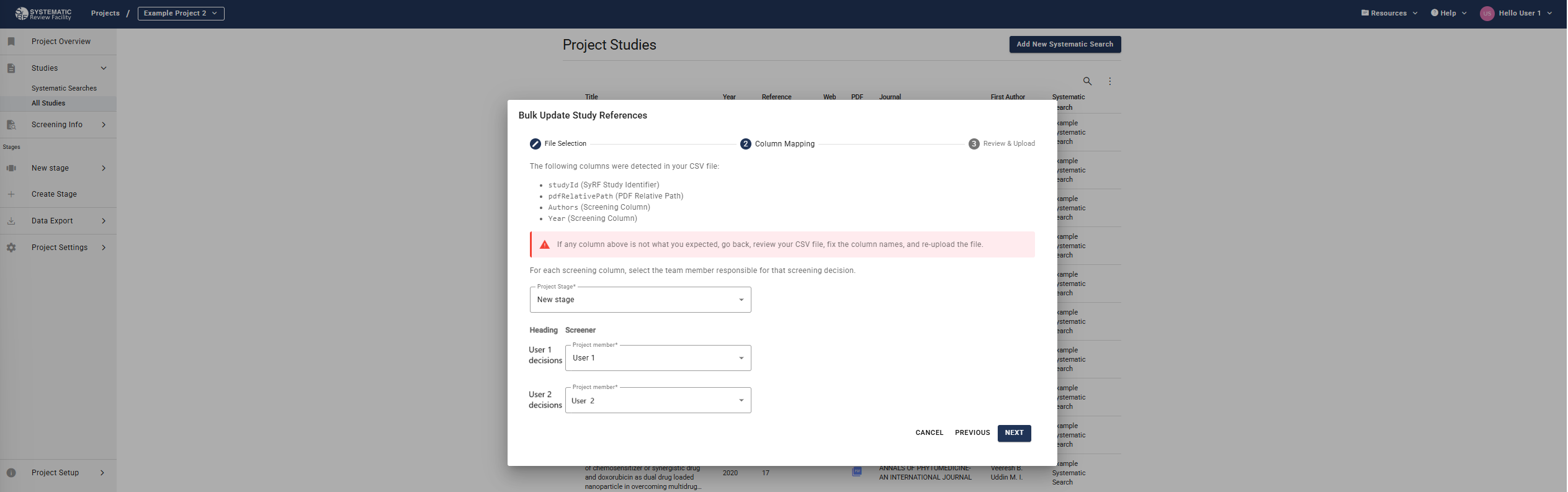
Column Mapping:
- SyRF will display the columns it detected in your CSV. Review this list carefully. If unexpected columns appear, cancel the upload, correct your CSV file, and try again.
- If you included screening decision columns, you must map each one to the corresponding Project Member and the relevant Screening Stage (e.g., Title/Abstract, Full Text).
-
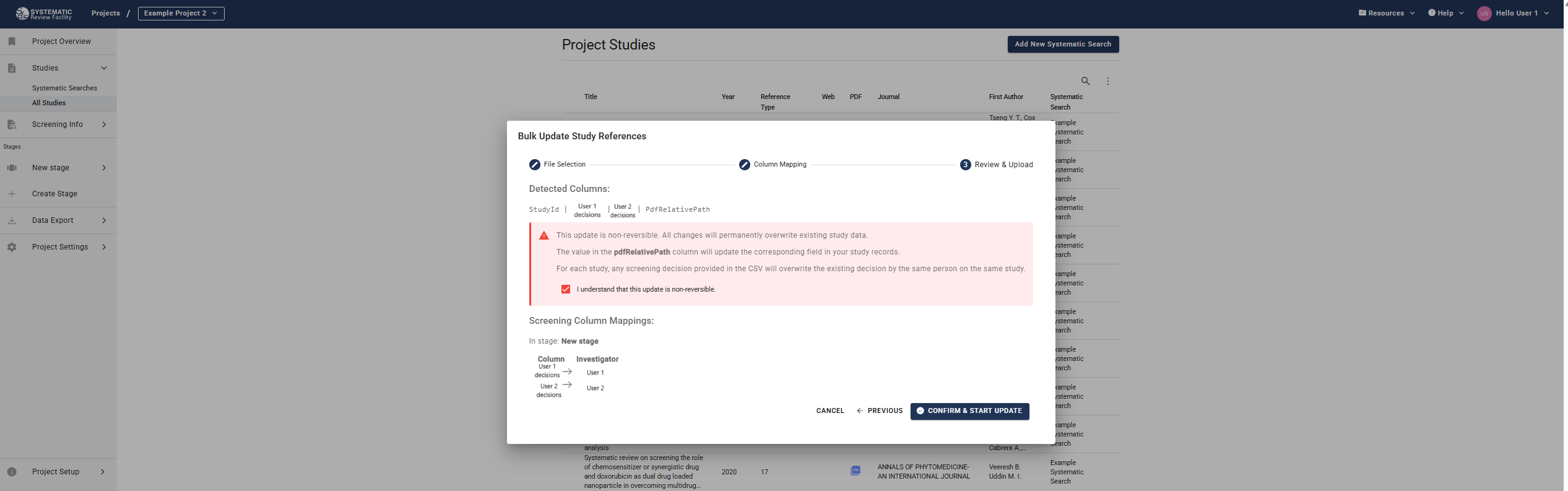
Review and Confirm Upload:
- A final confirmation screen summarizes the detected columns and the screening decision mappings you’ve made.
- Read the warnings on this page very carefully before proceeding.
Critical Warnings for Bulk Update:
- Irreversible Action: Bulk updates cannot be undone. Changes made are permanent. Double-check your update file and mappings.
- Overwriting Data (
pdfRelativePath,customId): Any data present in your update file for these columns will overwrite the current data in SyRF for the specifiedstudyId. - Erasing Data (
pdfRelativePath,customId): Providing a blank cell for these columns in your update file will permanently delete any existing data for that field in SyRF. - Screening Decisions: Decisions (
1or0) in your update file will overwrite existing decisions made by the same user for the same study and same stage. Blank cells in screening columns are ignored and do not erase existing decisions.
- If everything is correct, confirm the upload.
Following the Update After You Close the Dialog
Section titled “Following the Update After You Close the Dialog”Once an update is running you can close the dialog and carry on working. A summary strip under the All Studies heading keeps showing the project’s current or most recent bulk study update, and it survives navigating away, refreshing the page, or signing in from another browser — the state comes from the server, not from the dialog.
The strip reports only what SyRF can prove:
- Status and progress. A progress bar shows real numbers when the server reports them, and otherwise says that progress is not yet measurable rather than animating a figure it does not have.
- Result. When the update finishes, the strip says how many of the matched studies were actually changed. An update that matched studies but changed nothing says No studies changed — that is a real result, not an error. If the server did not produce a result, the strip says Result not available rather than reporting zero.
- Unmatched rows. A row whose
studyIdis not a study in this project (for example, a study from another project, or an id that doesn’t exist) is skipped. Nothing is changed for it, including any screening decisions on that row, and it is counted as unmatched. The other rows in the file are still applied. - Who and when. The person who started the update and the time it last changed appear where they are known. Where SyRF has no record, it says Not available instead of showing a placeholder date.
- Errors. The first ten retained problems are listed alongside the full error total when the server provides it. Show all expands the retained sample; the total can be larger than that sample.
- Upload never completed. If the file never reached the server before the secure upload window closed, the strip says the update can no longer complete and asks you to start a new one, rather than showing an upload still in progress. This is the Bulk Study Update label; a separate Bulk PDF upload that stalls the same way uses its own wording (see Bulk upload PDFs), not this one.
Clicking Bulk study update always starts a new update — it does not reopen or resume the run shown in the strip. To follow an update that’s already in progress, watch the summary strip itself, or, where your project has the Processing page enabled, follow its View in Processing link.
All-or-nothing updates
Section titled “All-or-nothing updates”SyRF is introducing a safer way to run a bulk study update. It is being rolled out gradually, so your project may not use it yet. When it is on:
- Every row is checked first. If any row has a problem (an unknown study, a reviewer who is not an active member, a decision that already exists), the update is refused and nothing is changed. Fix the rows listed and upload the file again.
- Studies open in a review stop the update before it starts. If a reviewer has one of the file’s studies open, the update is not started, and the message lists how many studies are busy. Ask the reviewers to finish or leave those studies, or remove them from the file, then upload it again.
- The update either changes every study or none. If it fails, is cancelled, or the person who started it loses access to the project part way through, SyRF puts every study back exactly as it was, and the message says nothing was changed.
- Studies being updated are briefly locked. While the update runs, its studies can still be viewed but not edited. A reviewer who opens or saves one is told “This study is being changed by a bulk study update…” and can carry on with another study; nothing they typed is lost from the form, but it is not saved until the update finishes.
- Large files must be split. One update can change at most 10,000 studies, and the file can be at most 50 MB.
Deleting an Entire Systematic Search Upload
Section titled “Deleting an Entire Systematic Search Upload”Project Administrators can remove an entire Systematic Search upload and all associated data from the project.
How to Delete
Section titled “How to Delete”- Navigate to Project Settings (usually accessed via a gear icon or link in the project header or navigation).
- Find the section related to Systematic Searches or Data Management. [Note: Exact location might vary slightly based on SyRF version - adjust if needed]. Look for a list of uploaded Systematic Searches with a delete option.
- Locate the Systematic Search you wish to delete and use the corresponding delete button/icon.
Extreme Warning: Deletion is Irreversible
Deleting a Systematic Search is a permanent action and cannot be undone. This action will remove:
- All studies that were part of that specific upload.
- All screening decisions (title/abstract, full text) associated with those studies.
- All data extraction/annotation answers associated with those studies.
Exercise extreme caution before deleting a Systematic Search. Ensure you are removing the correct item and understand the consequences.
Related Pages
Section titled “Related Pages”- Preparing References - How to prepare your reference files
- Upload Search - How to upload your systematic search
- Managing PDFs - How to add and manage PDF files
- View Studies - How to view your uploaded studies